Submit the Indicator Report
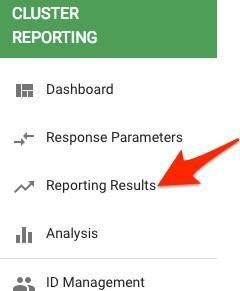
- Go to left navigation bar and click on Reporting Results
- Once the Reporting Results page opens, you will be able to view and/or submit indicator reports. Just click on Draft/Due Report or Submitted Reports accordingly
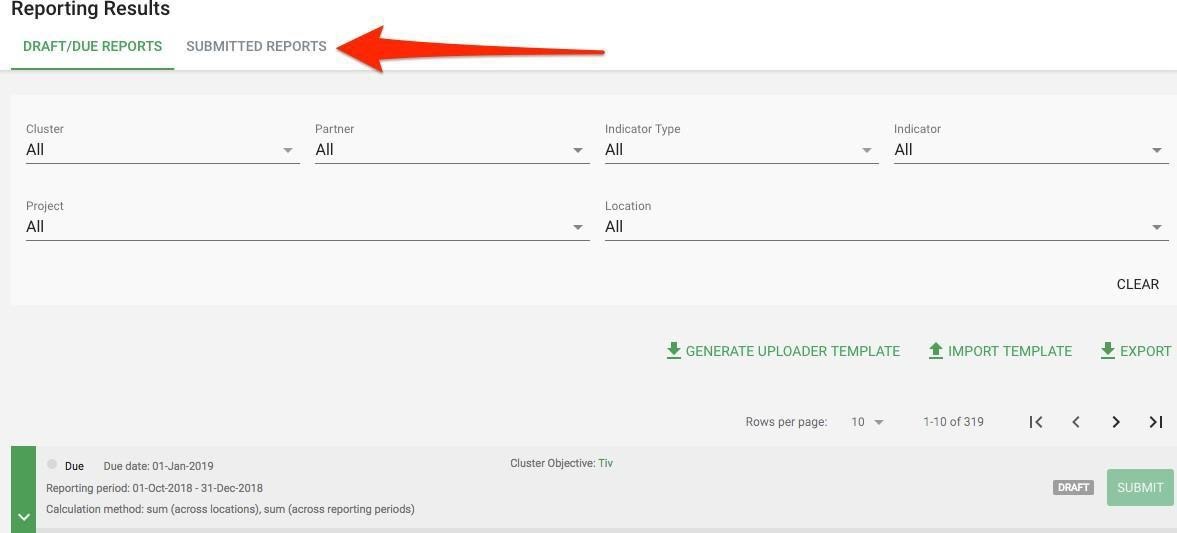
- If you wish to submit the draft or due indicator report, make sure you are in the
Draft/Due Reports tab and then open the indicator you wish to report on
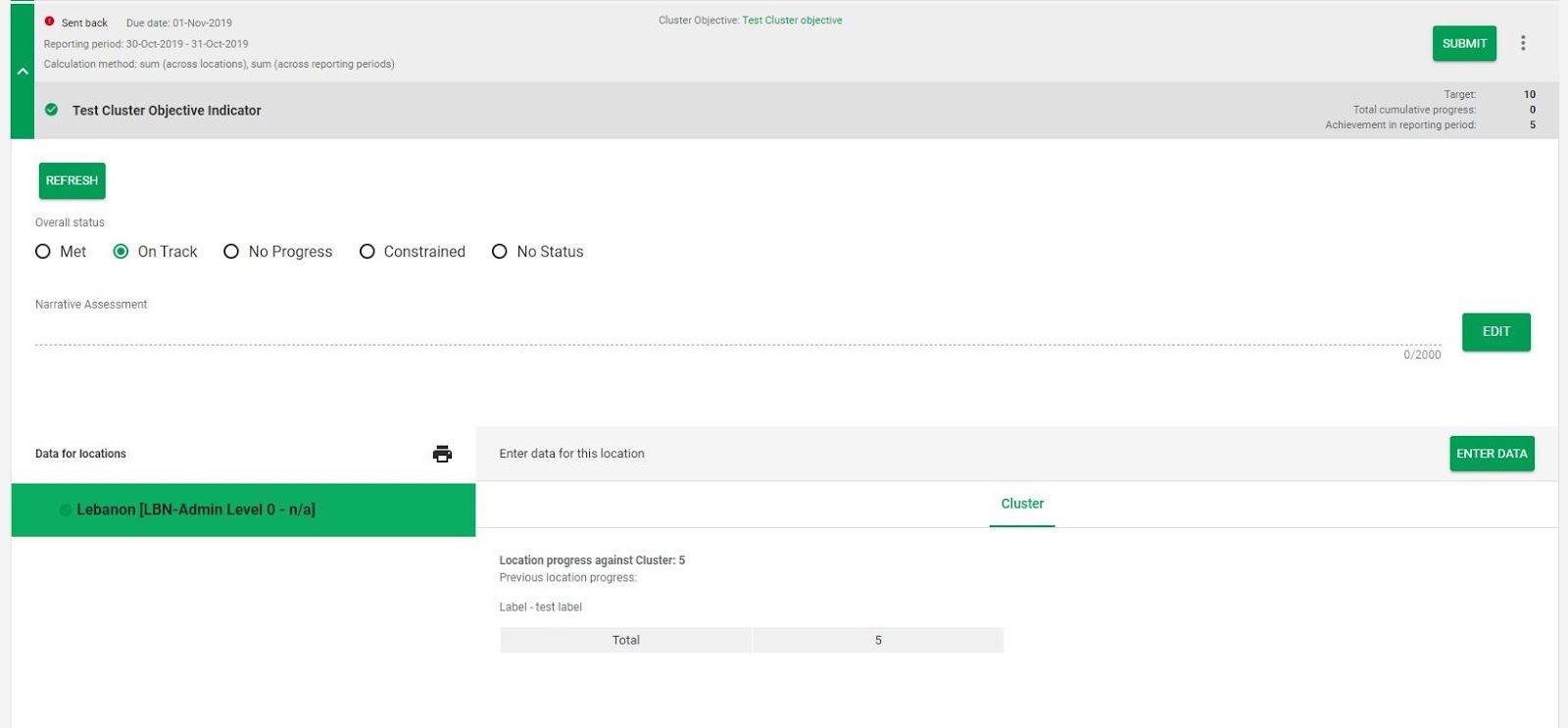
- Click on the arrow to open the indicator

- Enter Overall status, Narrative Assessment and Data for Location, and then click on the Submit button
- You will be asked to confirm you want to submit the report. Click on Continue

Send Back the Indicator Reports
Once the partner or another Information Management Officer submits the report, you will be able to review it and if necessary send back for corrections.
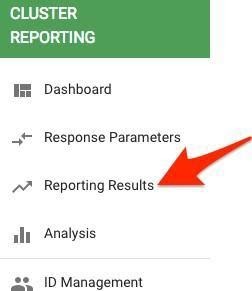
- Go to left navigation bar and click on Reporting Results
- Go to Submitted Reports tab
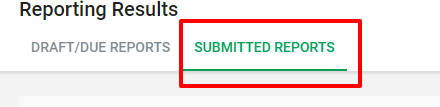
- Find the report you want to review.
- Click on arrow to open the report
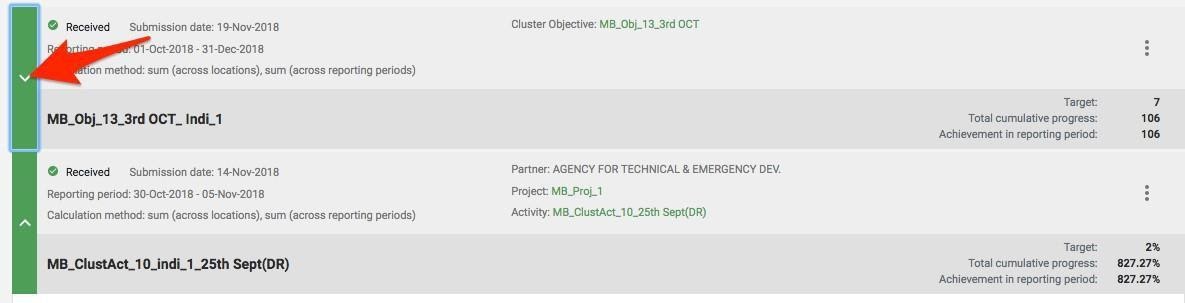
- If you are not satisfied with the report and think it needs changes, you can click on three dots
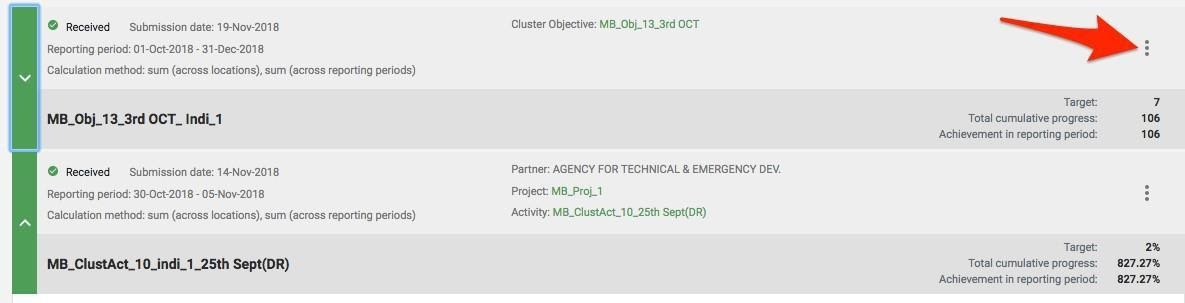
- Click on Send back to partner