Add Project Activity
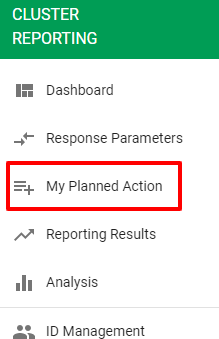
- Go to left navigation bar and select My Planned Action.
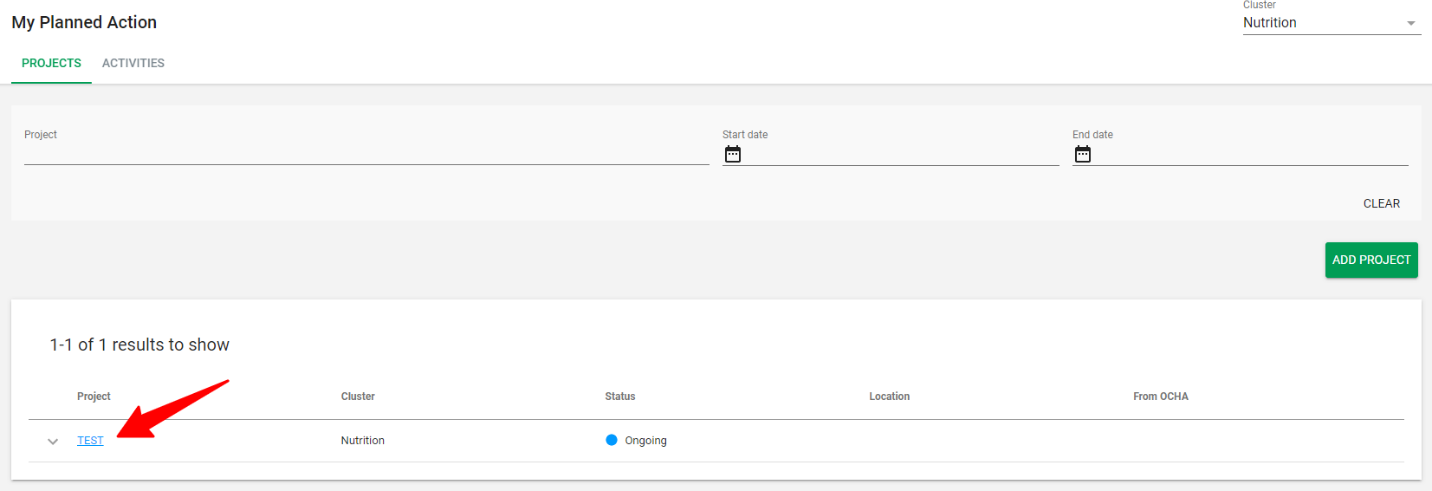
- On the project tab, select the Project from the projects list.
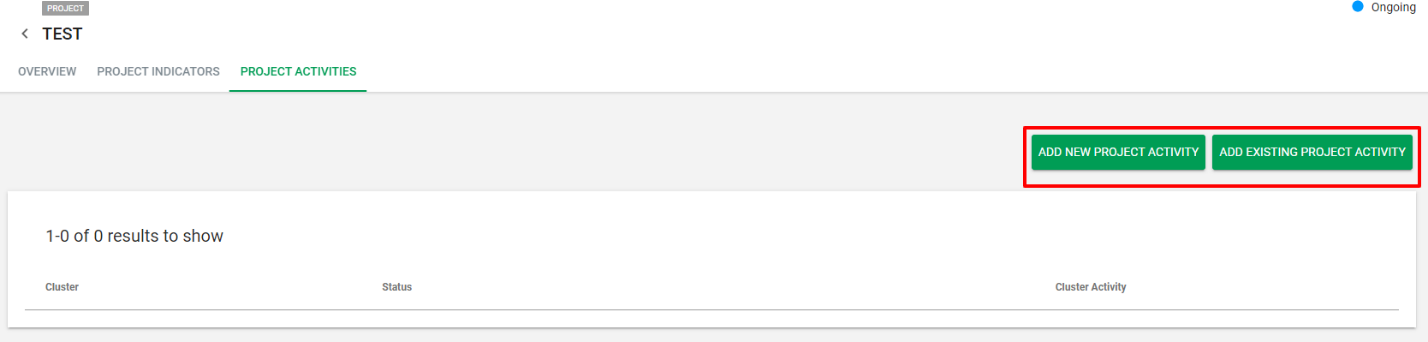
- Once the project page is open, click on the Project Activities Tab.
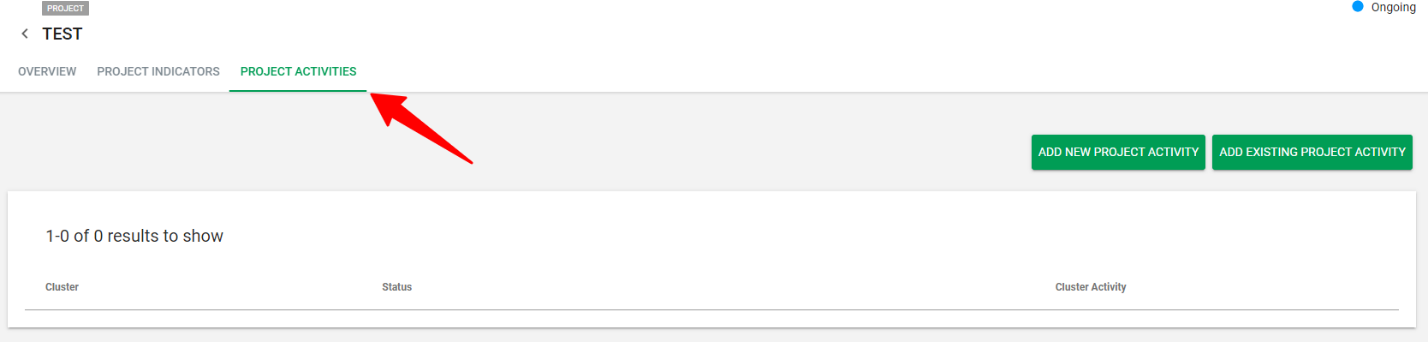
- On the Activities Tab, you can either select:
- Add new project Activity
- Add existing project Activity
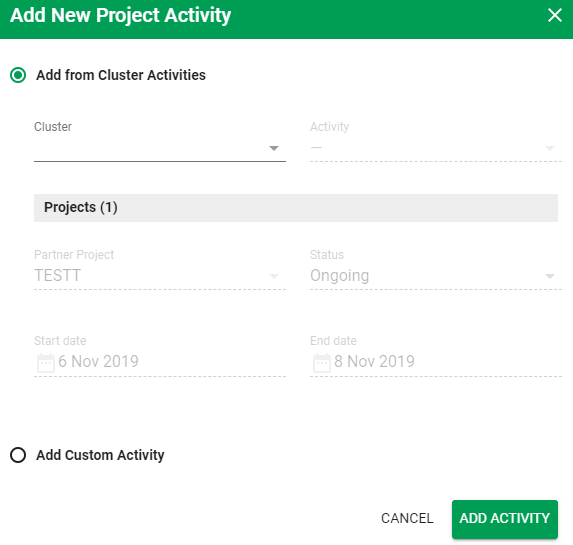
- Click on Add new project Activity, the below box will pop up

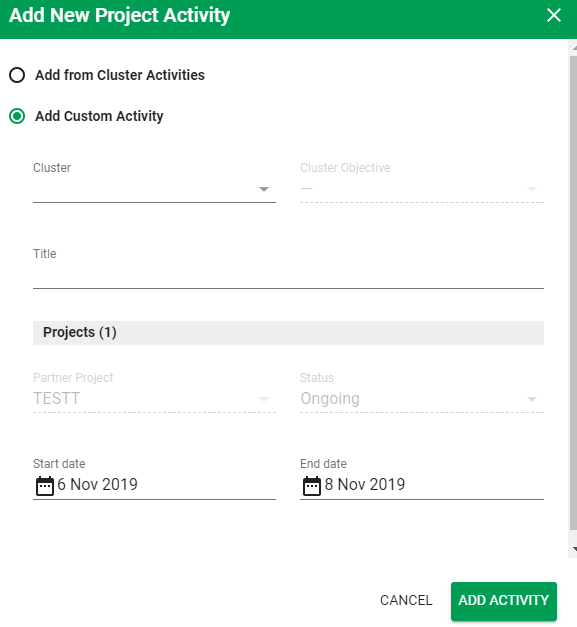
You can select either:
- Add from Cluster Activities and fill the below fields, then click Add Activity.
- Add Custom Activity and fill the below fields, then click Add Activity.
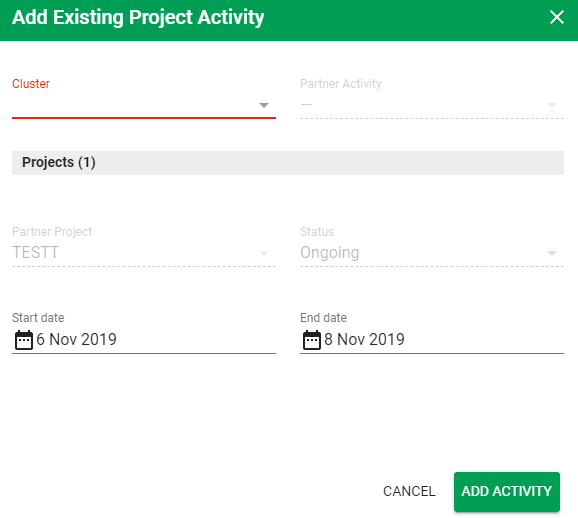
- Click on Add existing project Activity the below box will pop up, fill the below fields and click Add Activity.
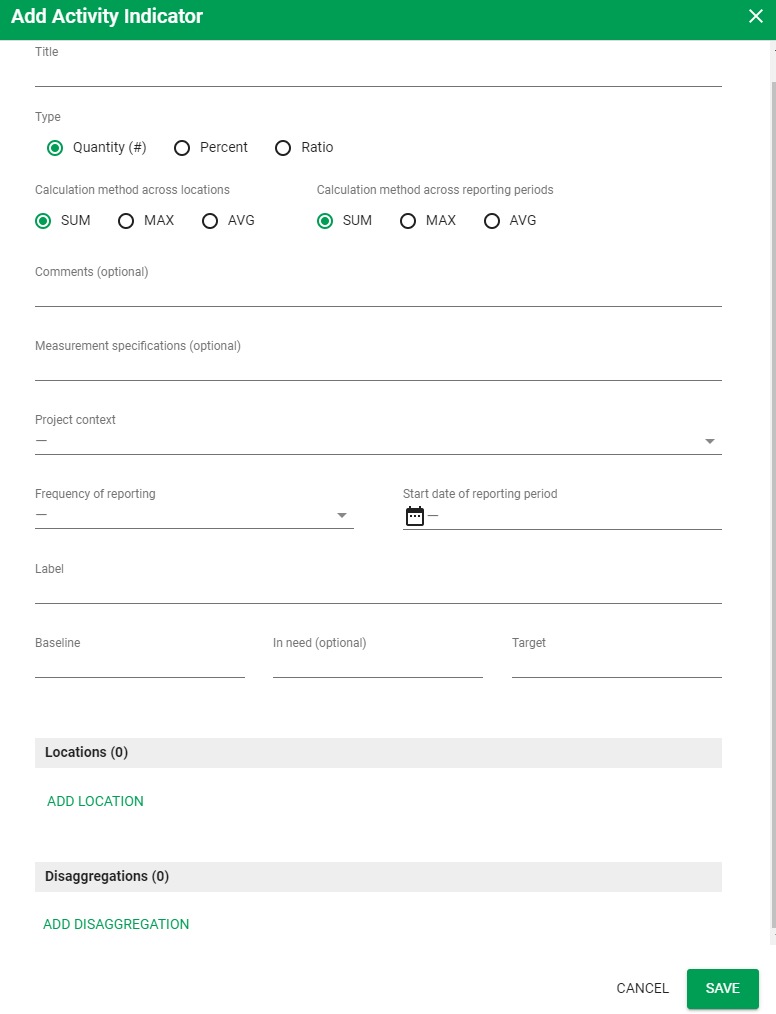
Add Project Activity Indicator
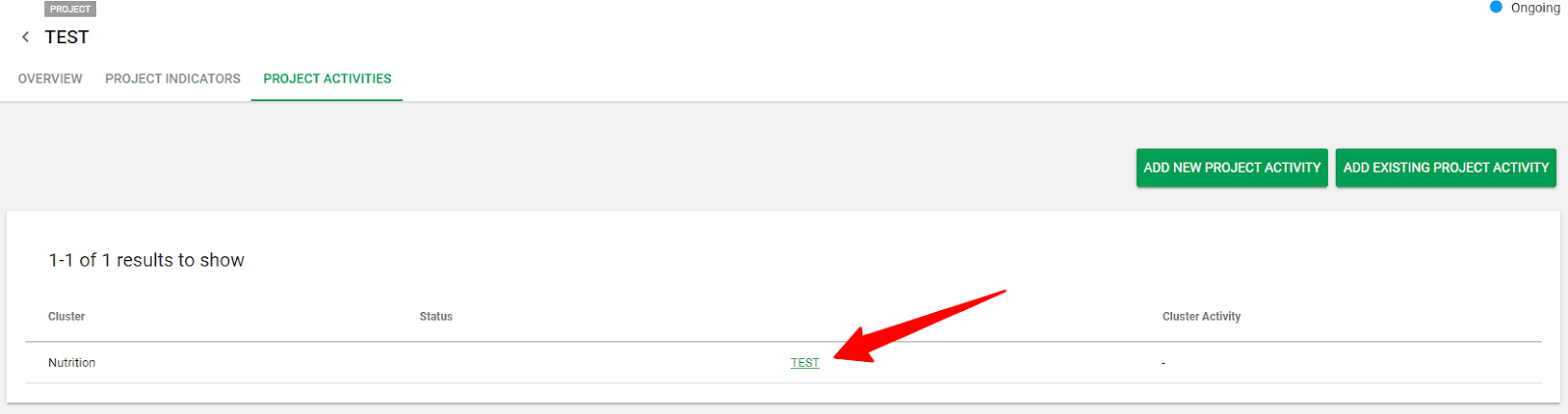
- Once you have added the Project Activity, open the Project Activity that you added on the Activity list:
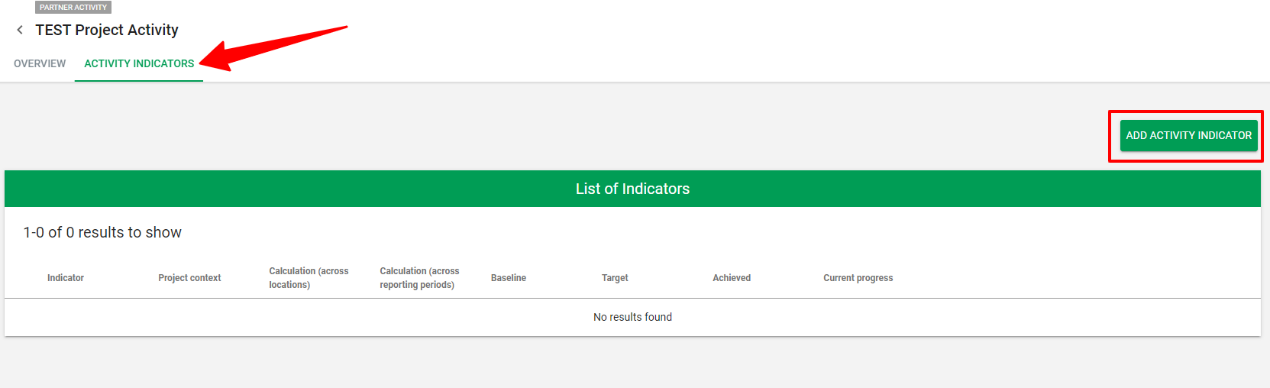
- Click on Activity Indicator tab, then click on Add Activity Indicator.
- Once clicked on Add Activity Indicator, the below fields need to be filled then click
Save.